
How to Schedule Instagram Posts from Google Sheets
A technical guide to automating your social media workflow using our Google Sheets add-on.
1
Install the Google Sheets Add-on
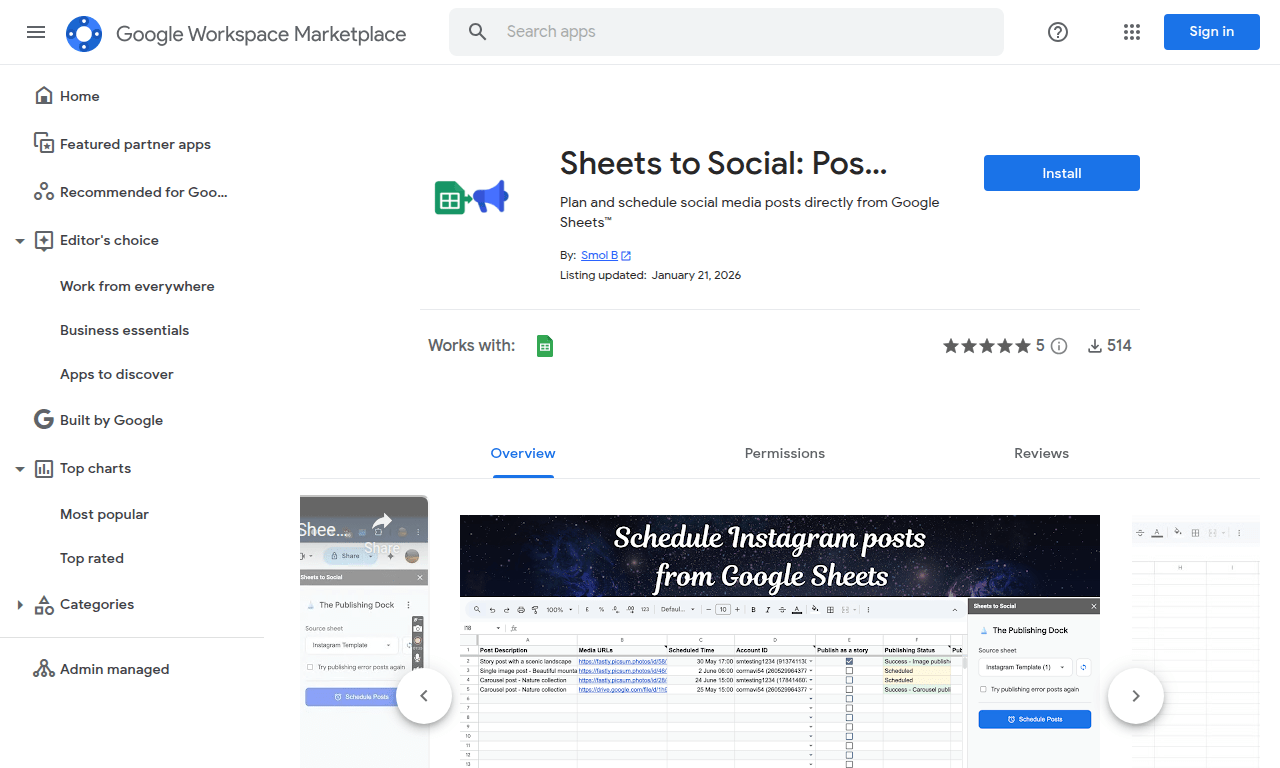
Get started by installing the Sheets to Social add-on from the Google Workspace Marketplace. This adds the necessary publishing tools directly into your Google Sheets environment.
Install Add-onVerified Google Workspace App
Install the Google Sheets Add-on
2
Open the Publishing Dock
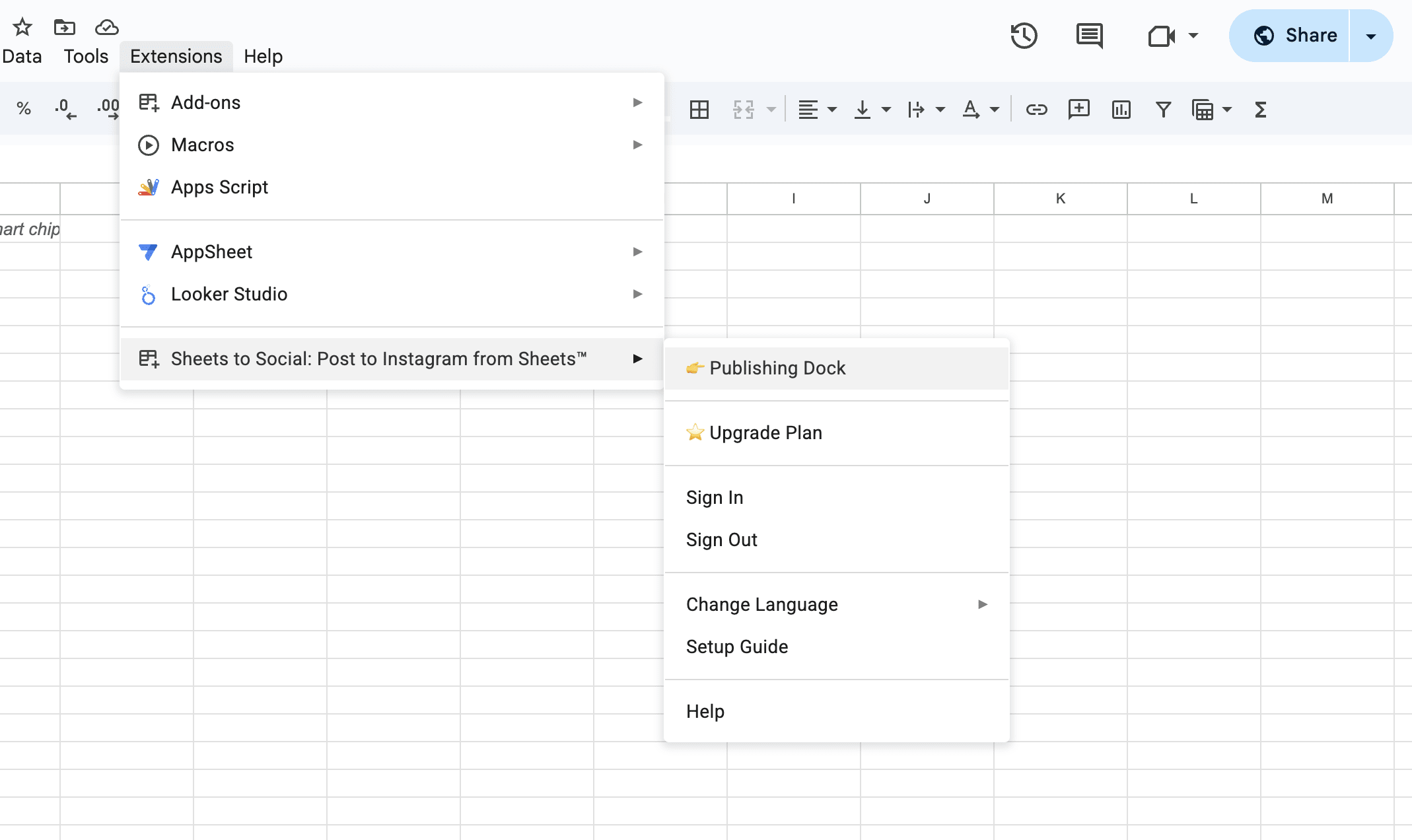
Open any sheet in Google Sheets. Navigate to the Extensions menu to open our specialized publishing dock.
Path:
ExtensionsSheets to SocialPublishing DockOpen the Publishing Dock
3
Automatic Template Setup
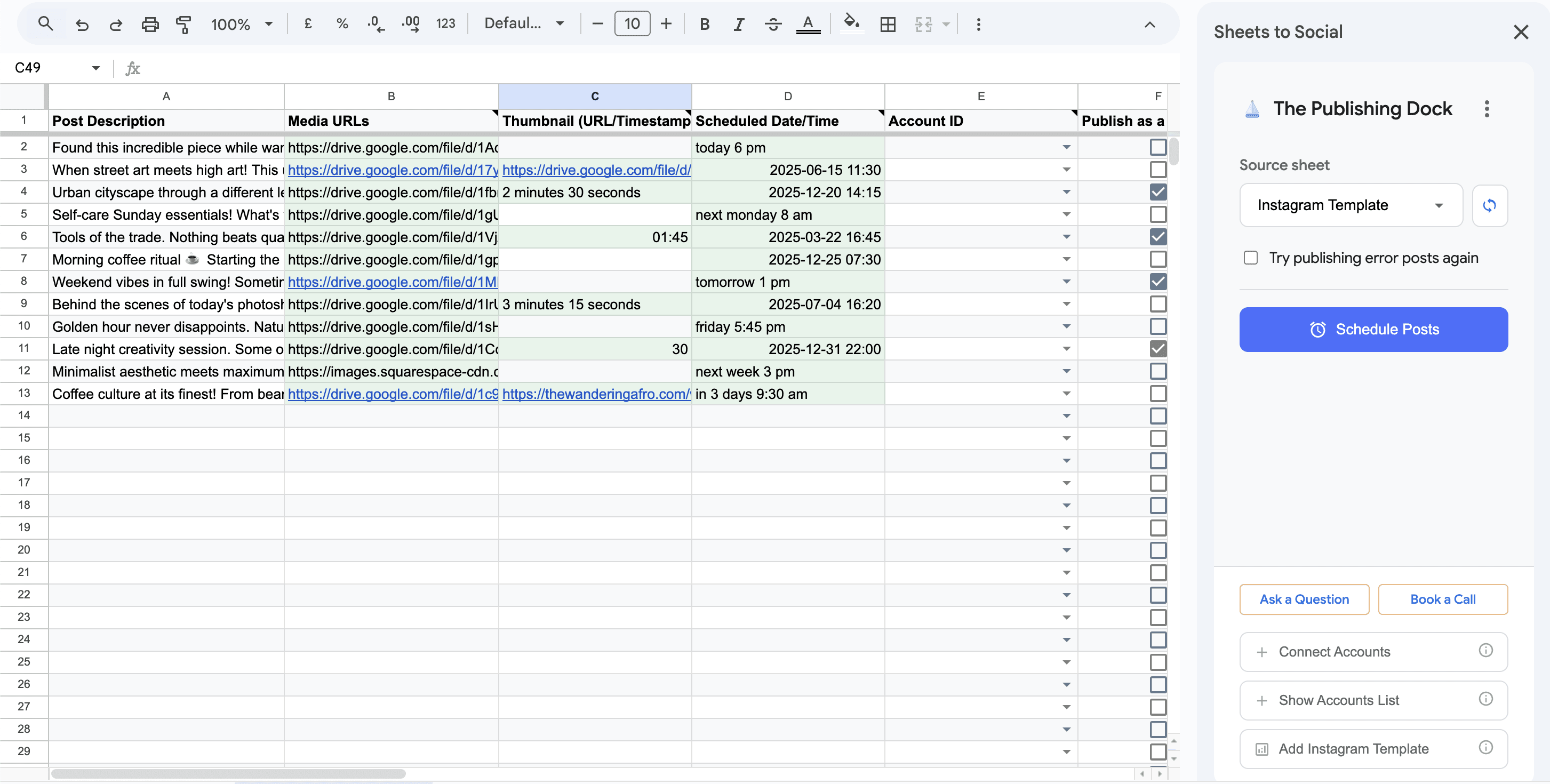
Once the dock is open, it will check your current sheet. If it doesn't match our format, a new pre-configured template will automatically open, including all columns required for Instagram and Facebook publishing.
Automatic Template Setup
4
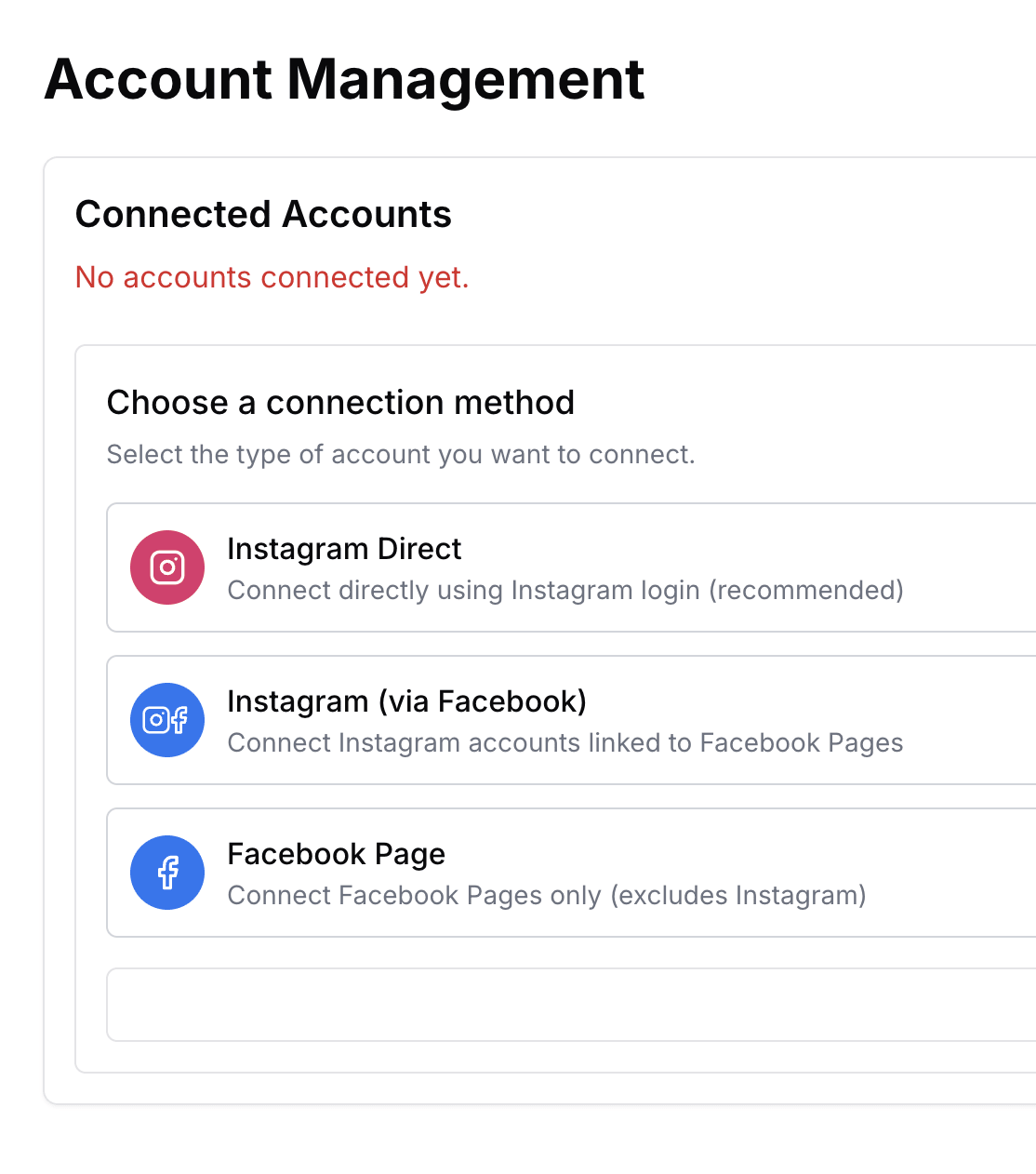
Connect Your Accounts
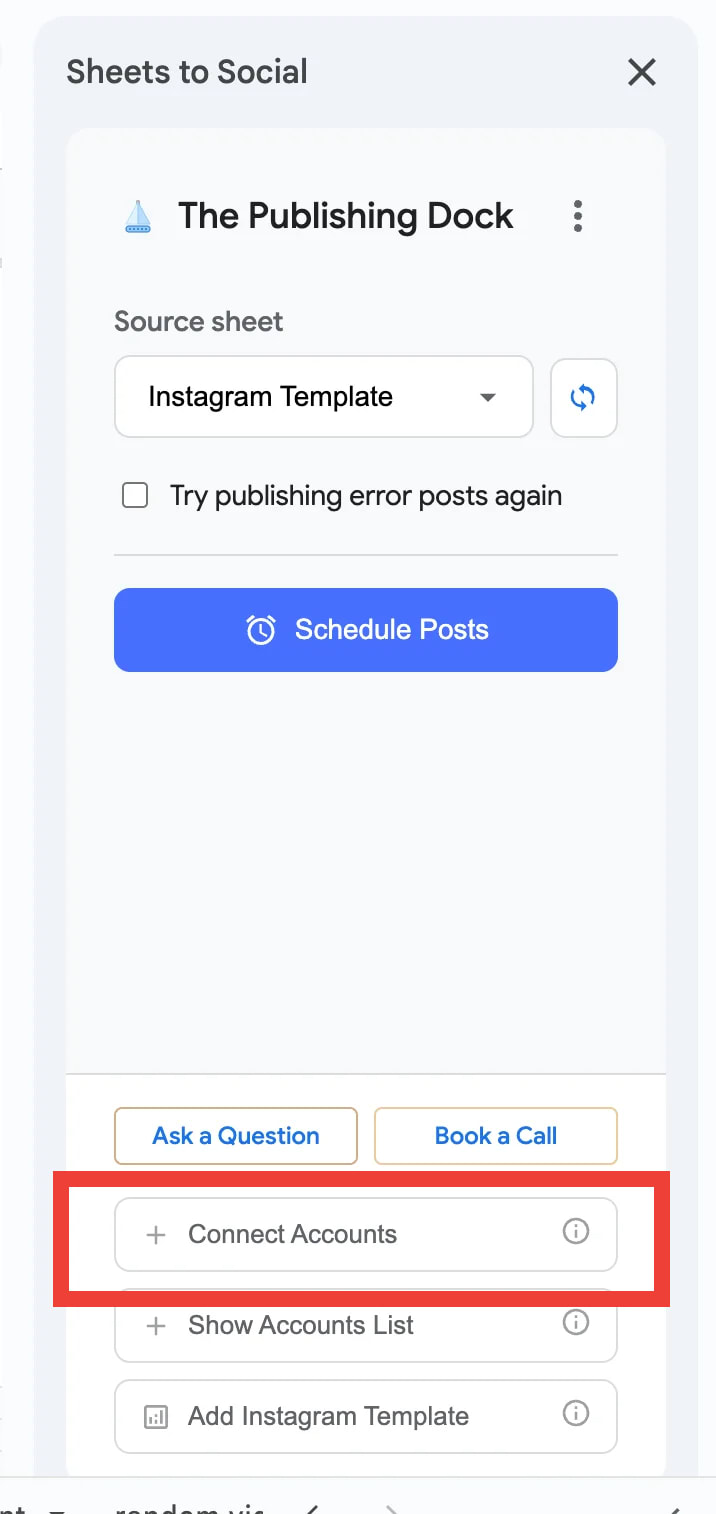
Before you can publish, you must securely link your social media profiles. This ensures we have the necessary API permissions to post on your behalf.
Connect Your Accounts
5
Populate and Schedule
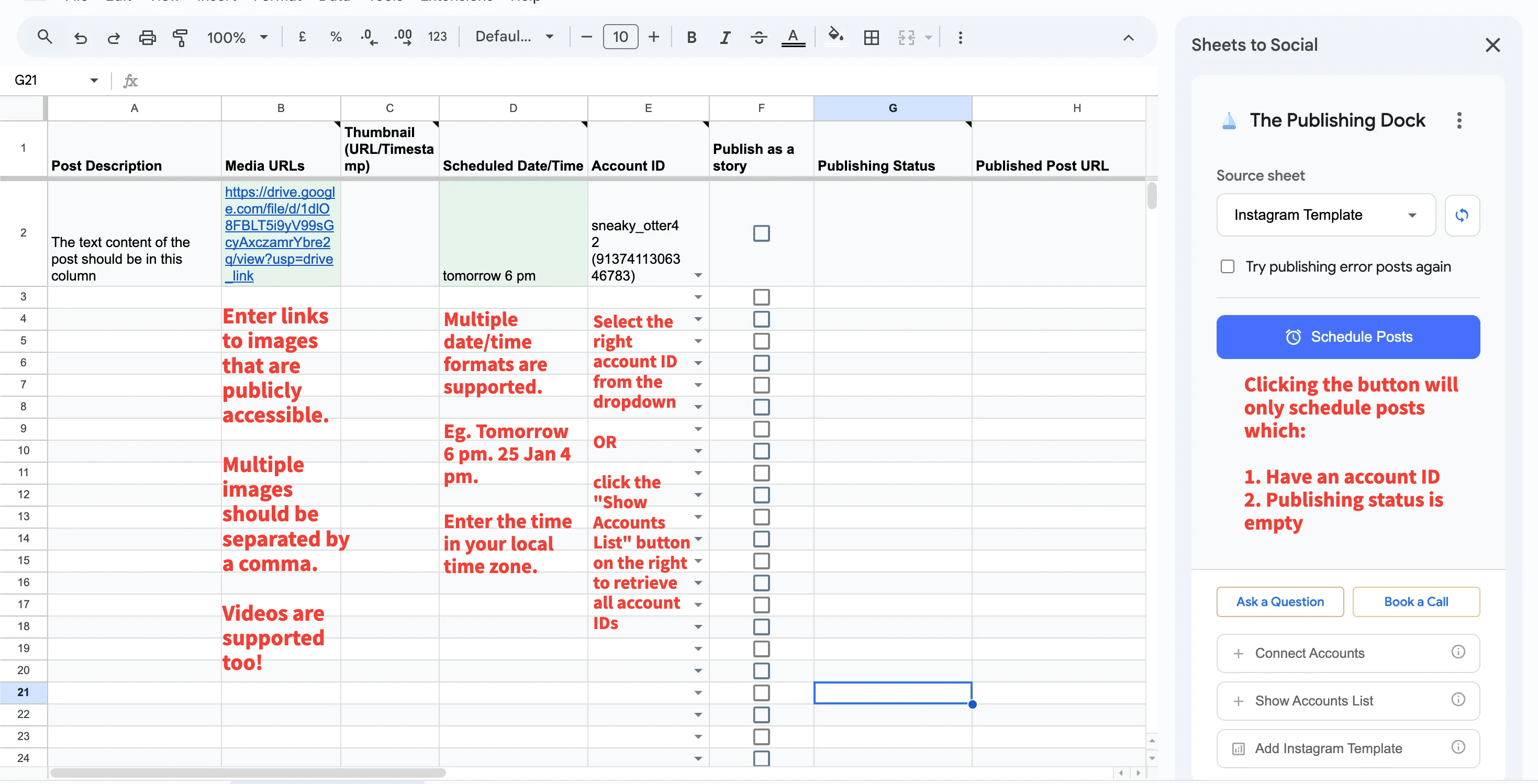
Each row in the spreadsheet represents a unique post. Fill in the following key details:
Account ID: Choose which profile to post to.Media URL: Provide the link to your photo or video.Publishing Status: Leave this blank to mark it for scheduling.
When you're ready, click the Schedule Posts button in the dock.
Populate and Schedule
6
Monitor Publishing Status
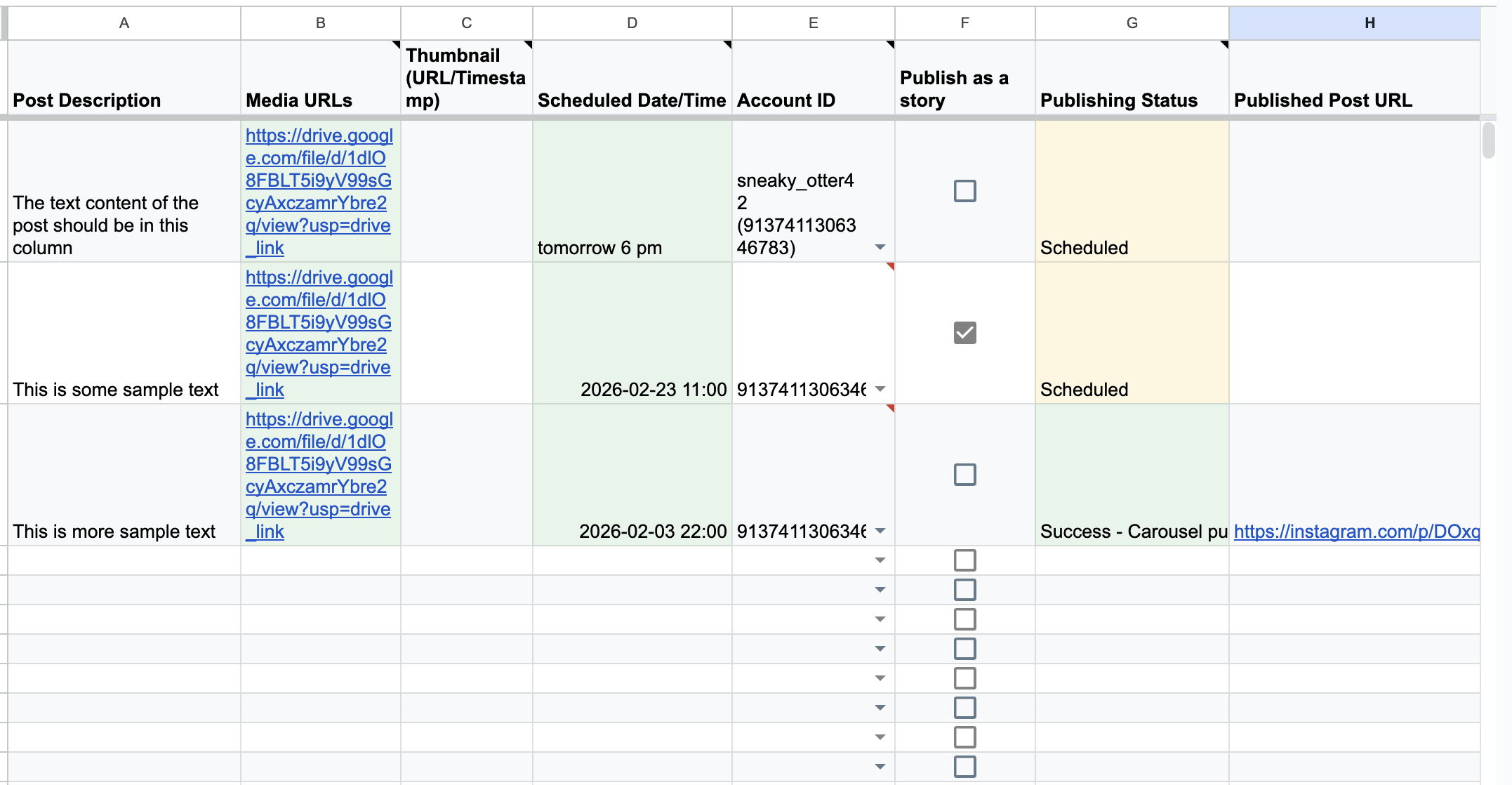
Our system automatically processes rows with an empty status. The 'Publishing Status' column in your sheet will update to 'Scheduled' once a post is queued, and finally to 'Success' after it has been successfully published to Instagram or Facebook.
Monitor Publishing Status
Next Steps
Once you've mastered the basics, explore our advanced features including bulk reels scheduling, multi-account management, and automated media processing.
Frequently Asked Questions
Quick answers to common questions about setting up your Google Sheets Instagram automation.